The counter app
The uniform store's phone app, on Android and in a phone browser. Choosing a server, signing in, the screens, and what it keeps on the phone.
On this page
The counter app is the coordinator's side of ThreadCount on a phone. You sign in with the same Admin or Issuer account as the portal at /app and see the same records, served at /m.
Two ways to open it
- In a phone browser. Go to
/mon your facility's server, such ashttps://uniforms.example.com/m. You don't need to install anything. - The Android app. It is called ThreadCount, and is not yet listed publicly on Google Play. It shows the same
/mscreens inside the app and adds the phone's own barcode scanner (see Scanning and browsers).
There is no iOS app. On an iPhone or iPad, open /m in the browser.
Connecting to your server
The first time you open the Android app, it offers four ways in. Create a free account and Sign in use ThreadCount hosted, at threadcount.tech. Own server connects to your organisation's Community server. Just looking? Open the demo opens the shared demo. The choice is made once on each phone and can be changed later.
Own server opens Where's your ThreadCount?. The server address sits on a shelf label, and there are three ways to fill it in:
- Type it. Enter the address ThreadCount opens at on your coordinator's computer, for example
uniforms.example.com. A pasted link works too, because the app keeps only the address. The app checks as you type. - Scan it. Tap
Scan the QR codeand point the phone atSettings › People & sign-in › Connect a phonein the portal on a computer. The app connects by itself once it reads the code. - Pick a recent one. Servers this phone has used are listed under
Recent. Tap one to use it again, or×to forget it.
The label says what the check found:
ThreadCount is here, with the server's edition and version, when the address is a ThreadCount server.Connectthen goes on toSign in.isn't a ThreadCount serverwhen something answered but it is a different website.Couldn't reachorNo answerwhen nothing answered over https within 8 seconds. Check the spelling, and that the phone is on a network that can reach the server.needs a newer version of this appwhen the server is newer than the app. Update the app first.
The app connects over https only.
Just looking? Open the shared demo goes straight into the shared demo. It is for looking around only: everyone shares it, and it wipes itself every twenty minutes.
After the first time, the app opens straight on your server. To change it later:
- tap
Changeon the server label on theSign inscreen, - press the phone's
Backbutton on theSign inscreen, - tap
ServerinSettings, or - tap
Change serveron theNo connectionscreen.
Signing in
Sign in asks for your work email and password. If your account has two-factor turned on, it then asks for the six-digit code from your authenticator app. A recovery code also works. Forgot password emails a reset link that works once and expires after an hour. See Two-factor.
Where the server takes sign-ups, the sign-in screen also offers New here? Create a free account. It creates a new facility in three steps: you (name, work email and a password of at least 8 characters, and the terms box if shown), your facility (its name, and optionally the kind of organisation and the state or territory), and confirm. You become the facility's first admin and are signed in; Open the counter goes to Today. A server whose sign-ups are closed says This server isn't taking sign-ups instead, with Sign in instead. See First run for closing them on your own server.
Everyone else at a facility is given an account: an Admin adds them with Add user in Settings › People & sign-in in the portal. See Users.
Where the server's shared demo is on, the sign-in screen also offers Open the demo, which needs no account.
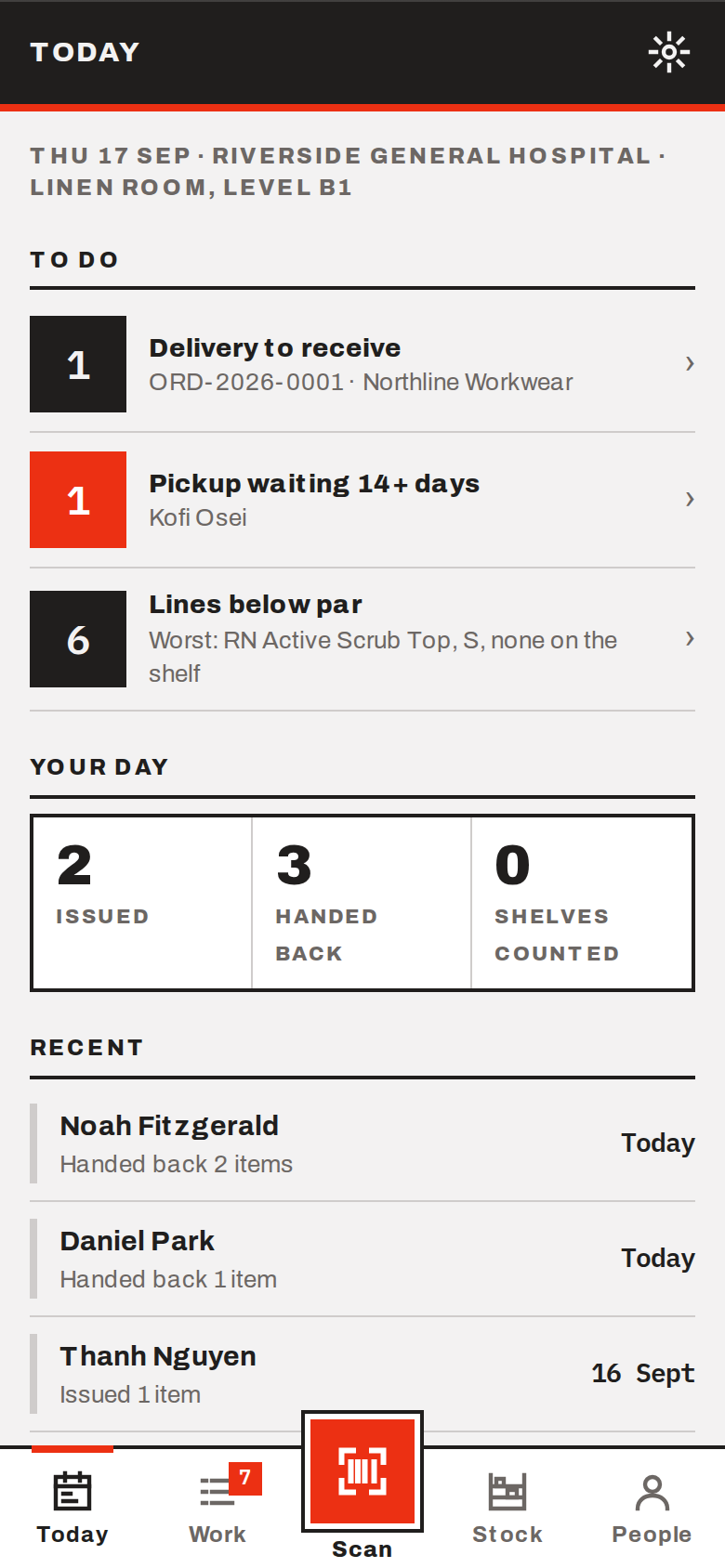
The screens
The bar at the bottom has five tabs.
| Tab | What it does |
|---|---|
| Today | What is waiting (requests to pick, a shelf due a count, deliveries, late pickups, sizes below par), your day's figures and recent activity. The gear opens Settings. |
| Work | Picks, In, Pickups and Rounds, each with its count |
| Scan | The camera. It reads a staff badge, a garment or a shelf label, or you type a code |
| Stock | Below par, On order and All, with a search box |
| People | Search the register; people served recently first |
What Scan does with a code:
- A staff number opens that person's record.
- A garment's barcode opens that size's stock line.
- A shelf label (a
TCL-code) starts a count of that shelf. - A code nobody has says so; an Admin can bind it to a size from the catalogue.
A person's record
The record has three segments. Issue a garment and Exchanges and returns say what each writes.
- Issue. Their sizes as cards, a meter each for tops and pants against the ceiling, and the lines being issued.
Review and signopens the signature. - Hand back. Scan or tap what they hand back, pick its condition, and swap a size in the same record.
- History. Issues and hand-backs by day, and their staff app sign-in. An Admin generates a staff app code here.
Where the other screens are
| Screen | Where |
|---|---|
| Receive a delivery | Work › In |
| Pickup call list | Work › Pickups |
| Delivery round, with a signature | Work › Rounds |
| Pick and hand over a staff request | Work › Picks |
| Count a shelf | Scan its label, Today, or Stock › Count a shelf |
| Reprint a label | A stock line's Print a label |
| Draft order | Stock › Draft order, or a stock line's Add to the draft order |
| Variance over time | Stock › Variance over time |
| Catalogue, product card and new garment | Stock › Catalogue; an Admin edits there |
Settings holds only what the phone controls:
Beep and buzz on scan, which applies to this device onlyShelf printer:Ready,Update the apporBrowserServer, the address the phone is using. In the Android app, tap it to change server.Count gap needing a reason. An Admin can change it; an Issuer can only see it.Help, thenPrivacy policyandTerms of useSign out
Orders, Reports and the facility's settings are in the portal at /app. On a phone, the portal's More sheet has a Counter app link that opens /m.
Printing from the phone
A stock line's Print a label and the Label button on Count a shelf print through Android's print dialog, which lists every print service installed on the phone: the printer maker's Bluetooth service, a network printer, or Save as PDF. Printing needs version 1.5 of the Android app or later; an older version shows Update the app. In a phone browser the label opens in a new tab to print.
What it keeps on the phone
The app keeps only these on the phone:
- your session
- any shelf count you have started but not filed. It is kept under your own account, so the next person on a shared phone never sees it. Filing the count deletes it, and signing out deletes all your open counts.
- the lines you are issuing or taking back but haven't recorded. Signing out deletes them.
- the beep setting, the chosen server, the recent servers list, and whether the phone has connected before
Issues, returns, stock, the staff register and every other record stay on the server.
Permissions and connection
The Android app asks for one permission, the camera, and uses it only to read barcodes. No picture from scanning is stored or sent.
The app works online only. With no connection it shows No connection. and a Try again button, and it won't let you issue or count anything. Nothing is queued to send later. A count you hadn't filed stays on the phone until you're back online.
Careful Signing out deletes any shelf count you haven't filed. File it first, or you'll have to count that shelf again.
Thanks.